How I Use Zotero to Manage References
Recently, there have been several discussions about papers citing references that do not actually exist, allegedly because of AI hallucinations. But this is not fundamentally an AI problem. Whether a citation suggestion comes from a coauthor, colleague, advisor, search engine, or AI tool, we are still responsible for checking that the source exists and, more importantly, reading it ourselves. AI may help us discover relevant work, but it cannot replace the process of engaging with a paper, learning from it, and noticing connections that a short summary may miss. AI should help us do better work, not give us a reason to shift responsibility or evade accountability.
This is why having a good tool for managing references matters. Reference management software helps us keep track of sources, import bibliographic information automatically, and generate in-text citations and bibliographies in different citation styles. In this post, I share how I use Zotero to manage references, reduce citation errors, and generate bibliographies with as little manual effort as possible.
I migrated from Mendeley to Zotero around ten years ago, when Mendeley was acquired by Elsevier. At the time, Elsevier had a poor reputation among many academics because of the high subscription fees universities paid for journal access. Today, some of that burden has shifted onto authors, even though they are the very people who produce knowledge, as they may need to pay article processing charges to publish open access. (This PhD Comics episode about page charges is timeless, even if digital journals no longer really have “pages.”)
I am fortunate that my institution has open access agreements with major publishers that cover article processing charges for some hybrid and fully open access journals. But I do not know whether smaller universities have similar agreements, or how much universities have to pay for them. These differences can also create inequalities in scholarly publishing that favor established and well-funded research teams. Of course, maintaining journals has costs, but it is still worth thinking about what kinds of publishing systems best serve scholarship and support the cumulative development of knowledge in the long run.
This is also why I tend to like academic tools that are open, flexible, and not too dependent on any single company’s ecosystem. For my own workflow, Zotero fits that preference well. Zotero is free and open source. Its data syncing is free and unlimited. File syncing for attachments such as PDFs and snapshots has a storage limit. But if you do not need to sync PDFs through Zotero’s cloud storage, the free plan can go a long way.
Why I Like Zotero
I write papers in different editors, including Microsoft Word, Google Docs, LaTeX, and Quarto/R Markdown, depending on my coauthors’ preferences and whether the project involves mathematical notation. Zotero is useful because it fits into all of these workflows.
It also supports several ways to import bibliographic information: by clicking the browser connector, by adding items through identifiers such as DOI or ISBN, and by using the browser connector to import citation records from Google Scholar export links such as RefMan/RIS.
Of course, what works for me does not necessarily work for everyone. The best reference manager is the one that fits your own workflow. I hope this post is useful if you are still looking for a workflow, or if you are looking for ways to improve your current one. I also think it would be helpful if more people shared their own experiences with the same or different tools.
Optional: Turning Off Automatic PDF Attachments
Zotero’s data syncing is free and unlimited, so the storage limit does not prevent you from syncing citation records across devices. The limit mainly applies to file syncing for attachments such as PDFs and snapshots. Because PDF files can be large, Zotero’s free file storage can fill up quickly if you automatically attach and sync PDFs.
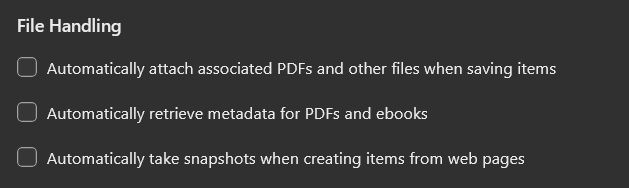
Even when your free file storage is full, you can still add and sync Zotero items. However, the repeated storage warnings can be annoying. If you do not need Zotero to sync PDFs through its own cloud storage, one simple option is to turn off automatic PDF attachments by unchecking the options shown below:
Import Bibliography Entries
Besides manually entering bibliographic information, Zotero supports several ways to import citation records.
The three methods I find most useful are:
- clicking the Zotero browser connector icon;
- adding items by identifier, such as DOI or ISBN;
- using the browser connector to import citation records from Google Scholar export links, such as RefMan/RIS.
Using the Browser Connector
You can add an item by using the browser connector, which can be installed here. After installing it, open the page you want to save and click the Zotero extension icon in your browser toolbar.
- The Zotero desktop app should be running.
- The item will be added automatically to the collection currently open in your Zotero app.
- This works not only for scholarly articles, but also for many other webpages. If Zotero cannot identify the page as a scholarly work, it may save it as a website item.
Adding Items by Identifier
You can also add an item by identifier, such as a
DOI for journal articles or an ISBN for books. For DOIs, you can usually
paste either the DOI itself or the full https://doi.org/...
link.
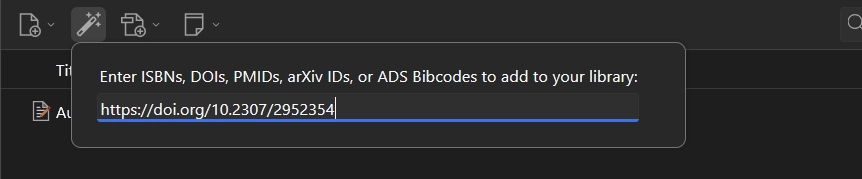
You can find the Add Item by Identifier button in the toolbar, as shown below.
Importing from Google Scholar Citation Export Links
This method also uses the Zotero browser connector, but in a
different way. Instead of clicking the Zotero icon in the browser
toolbar, you click a citation export link on Google Scholar, such as
RefMan, which opens an .ris file. Once the
connector is configured, Zotero can import the citation record
automatically.
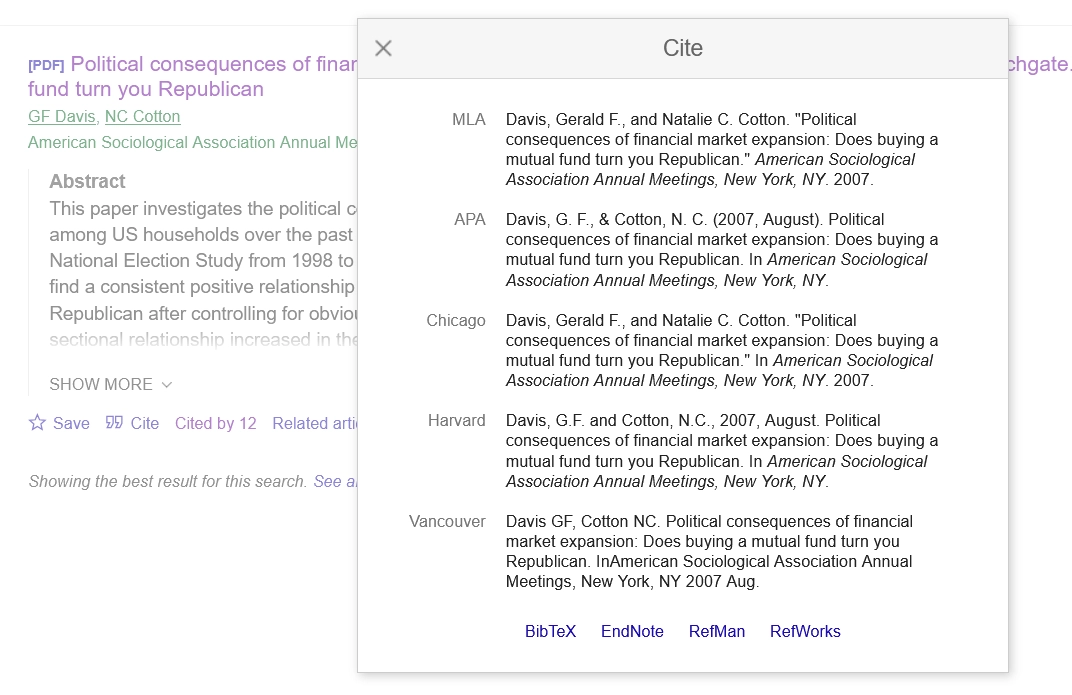
This is especially useful for scholarly works that are indexed by Google Scholar but do not have a DOI or other identifier, such as some working papers or conference papers. For example, this conference paper indexed by Google Scholar does not have a DOI, but its citation record can still be imported through Google Scholar’s RefMan/RIS export option.
To enable this option, go to the preferences for the Zotero browser connector and check Import BibTeX/RIS/Refer files into Zotero.
The first time you click a citation export link, Zotero may ask whether you want to import files from that site. You can allow it once, or choose to always allow imports from that site.
On Google Scholar, you can then click the citation icon and choose
RefMan, which opens an .ris file and
imports the reference into Zotero automatically. Some other websites
also provide BibTeX export links, but for Google Scholar I find
RefMan/RIS more reliable because the BibTeX option may open the citation
record as plain text in the browser.
Insert Citations and Bibliographies in Google Docs and Microsoft Word
Zotero also integrates with Google Docs and Microsoft Word. The Google Docs connector is bundled with the browser extension used for one-click importing, while the Word add-in is included with the Zotero desktop app.
Once they are installed, you can use Add/Edit Citation to insert in-text citations and Add/Edit Bibliography to generate a reference section. If you need to change the citation style, click Document Preferences and choose a different style. Zotero will then update both the in-text citations and the bibliography automatically.
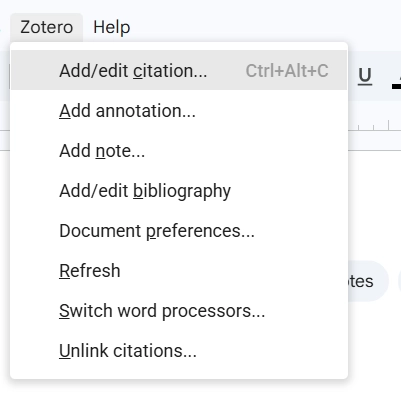
If you do not find the citation style you need in the built-in options, you can install additional styles from the Zotero Style Repository.
Using Zotero for BibTeX
If you use BibTeX with LaTeX, Quarto, or Pandoc Markdown, you can
export a .bib file by installing the plugin Better BibTeX for Zotero.
I usually organize all the references for a paper in a subcollection. Then I can select all items in that subcollection, right-click, choose Export Items, and export them using Better BibTeX.
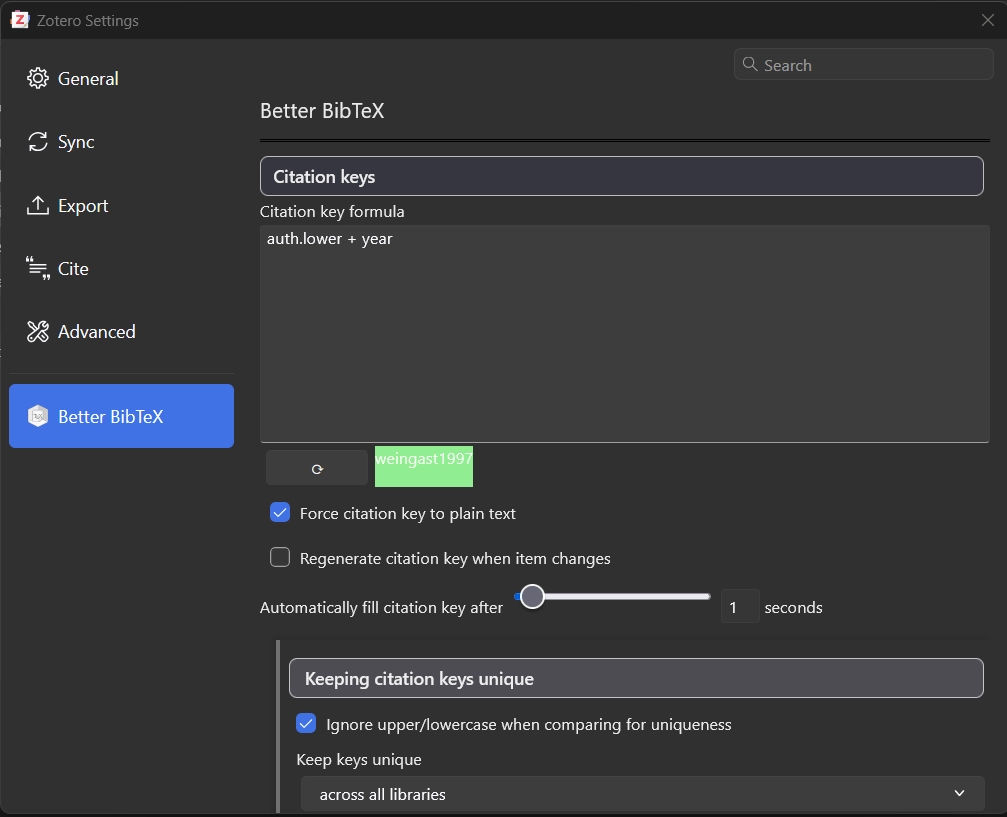
Better BibTeX now works with Zotero-native citation keys. These
citation keys are the identifiers used inside \cite{} in
LaTeX or after @ in Quarto and Pandoc Markdown. To make
sure citation keys are consistent across devices, go to the Better
BibTeX settings and choose how you want your citation keys to be
formatted. If more than one reference produces the same citation key
under your chosen format, Better BibTeX will add a suffix such as
a, b, and so on.